Teams · 7 min read
One bookmark collection your team can work on together
Give a project one shared home for links, notes and tags. Name your team, organize its folders and decide who can read, add or edit. Only the owner needs Pro.
By Miodrag MilosevicUpdated
A project often starts with a few links in a chat: a useful article, a reference, a tool to try. Once several people are collecting things, it helps to have one place where everyone can find them. Stash Teams lets invited people work in the same bookmark collection, with the access you choose.
Teams is available in the web app today. Use a browser on your computer or phone. Only the owner needs Stash Pro; invited members can join with a Free account. The Android app is coming soon to Google Play. See Android availability for the current status.
Team collections or a read-only share link?
Use a read-only collection share when you want to send a reading list or let someone import an independent copy. Their changes stay in their own library. They cannot add to or edit your original.
Use Teams when people need to keep working on one collection together. Members see the same links, notes and tags. Contributors can add links, and Editors can also update or remove them. Changes affect the shared collection rather than a separate imported copy.
| What you need | Collection share | Teams |
|---|---|---|
| Send someone a reference list | Read-only view and independent import | An invitation to the same collection |
| Work on the original together | Recipients cannot edit it | Add or edit according to your role |
| Share notes and tags | Tags are included; personal notes are excluded | Notes and tags in the team are shared |
| Choose who needs Pro | Only the sender | Only the owner |
Start a named team from an existing collection
- Create a collection in your library for the project, if you do not already have one.
- Open Teams from the library sidebar and find Start a team collection.
- Enter a Team name and select the collection you want the team to use.
- Review which links, notes, tags and sub-collections will become team content. Read and accept the sharing rules, then choose Start team collection.
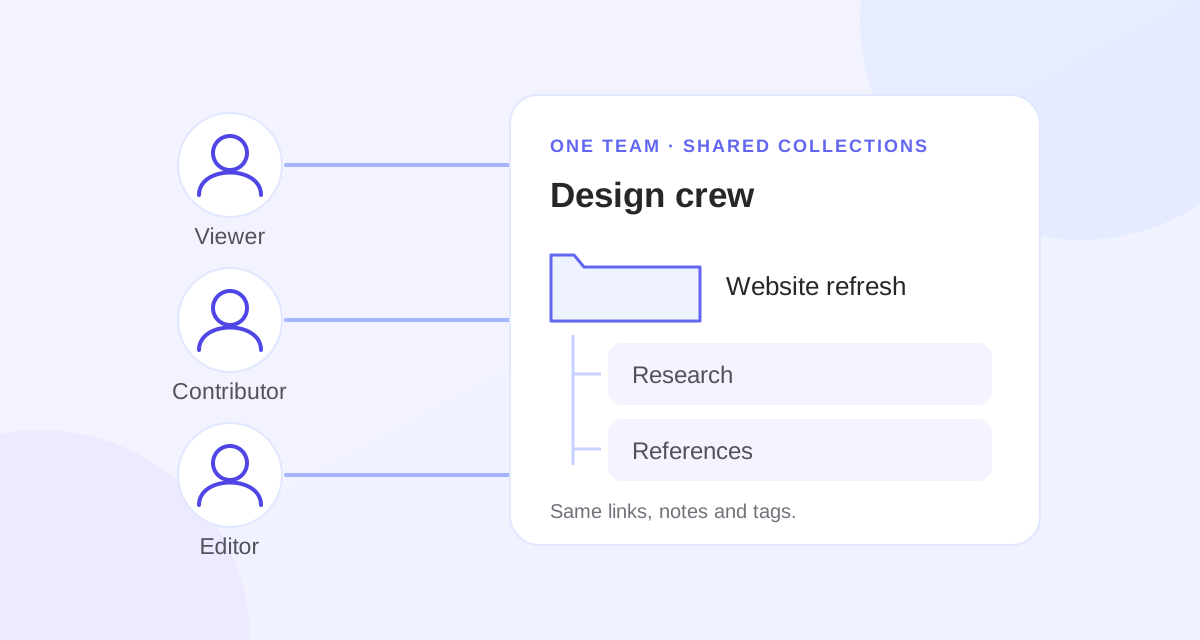
The team name is separate from its collection names. For example, a team named Design crew could use a collection called Website refresh, with sub-collections for Research and References. Renaming the team does not rename those folders. The owner can change the team name later.
Your navigation separates Personal collections from named Team collections. Personal collections outside the chosen team stay outside its members’ access.
Invite Viewers, Contributors or Editors
Open the team collection and go to Invite people. Choose Role for new members, select Create invitation link, then copy and send the link yourself. Stash does not send invitation emails.
- Viewer: can read the team’s links, notes and tags.
- Contributor: can read and add links, but cannot edit or delete existing links.
- Editor: can read, add, edit and delete links for everyone in the collection.
- Owner: manages the team name, sub-collections, member roles and invitations, as well as its links.
Invitation links expire after seven days. Anyone with a valid invitation can join using its role, so send it only to the people you intend to invite. Creating a new invitation for the same role replaces that role’s previous link. The owner can revoke current invitations.
To join, open the invitation, sign in with your own Free or Pro Stash account, review the team and role, accept the sharing rules and join. Joining another invitation does not change an existing member’s role; the owner changes it explicitly.
Keep shared sub-collections inside the same team
The team’s collection tree includes its existing sub-collections. New sub-collections inherit the same members and roles, so a project can grow without inviting the same people into each folder. The owner can create a sub-collection from the team view or navigation.
Existing independently enabled teams keep their own membership boundaries. Private ancestors and sibling collections outside the team are not included. If a folder is moved out of the team, it no longer gets access from that team.
Choose the team destination before saving a link
The save form lists Personal collections separately from your named teams. Select the team and folder where the link belongs. The form shows Team collection selected, the team name, the collection path and Save to team, so you can check the destination before saving.
Open a team folder directly to save into that folder. Contributors, Editors and the owner can add links; Viewer and paused destinations cannot receive new links. Team saves go into the shared collection, while your other personal links stay in your own library.
Know what the team can see
Members share the links, titles, descriptions, notes and tags in the team collection tree. Add a note when you want to explain why a source matters to the project; everyone with access to that team can read it. Uploaded images remain private.
Team content is behind a Stash login and is not a public page for search engines. An invitation grants the selected team role; it does not expose the owner’s entire library. Team links are stored in the owner’s collection, while each member keeps a separate personal library.
Change access as the project changes
The owner can change roles or remove a member in People in this collection. Removing someone also revokes all current invitation links, so they cannot rejoin through an old invitation. Create new links afterwards for anyone else who still needs to join.
Revoke all invitation links stops new joins while existing members keep their access. Stop team access removes members and invitations while keeping the owner’s collection and saved links.
If the owner’s Pro plan ends or sharing is paused, member access pauses without deleting the collection. The owner can restore access or stop it. Members can leave the team, report shared content or block its owner through the team controls.
Start with one project
A research group, a small design project or a set of useful resources for a class is a good place to start. Name the team after the people, name the collection after the project, and use a few clear sub-collections. Give each person the role they need.
If you only need to send a finished list, use collection sharing. For setting up the folders first, see organizing bookmarks or organizing research links. Compare Free and Pro before starting your own team.
Bring your team’s links together.
Start a team with Pro. Invited members can join on Free.