Deep search · 5 min read
How to search inside your saved bookmarks
Remember a word from an article, but not its title? Find it with free Deep search. Try the example, then follow the steps with your own saved links.
By Miodrag MilosevicUpdated
01 · Save a page
How we build our product
studio.example/product-process
“We sketch a few directions first. In Figma, we build a clickable prototype before the next design review. After feedback, we refine the layout and share the finished files.”
You remember Figma from the article. It is not in the title, URL, tags or note.
02 · Find it again
Search the saved title, URL, tags and note first.
Save the sample link to start.
To search inside a saved bookmark in Stash, save the public page, wait for its content to be read, then turn on Deep search beside the search field. Search for a word you remember from the article. A matching result includes a passage from the page, even when that word is missing from the bookmark's title. Deep search and unlimited bookmarks are included in Free.
The example above uses a fictional article called “How we build our product.” Its text mentions Figma, while its title, URL, tags and note do not. Try the same search with Deep search off and on to see the difference. The example runs with sample content and does not need an account.
1. Save the page you want to find later
Copy the article's URL, open your Stash library and paste it into the save-link field. Choose a collection if you want to keep it with a project. A bookmark keeps the original address; adding a note such as “Use this at the next design review” gives you another way to find it.
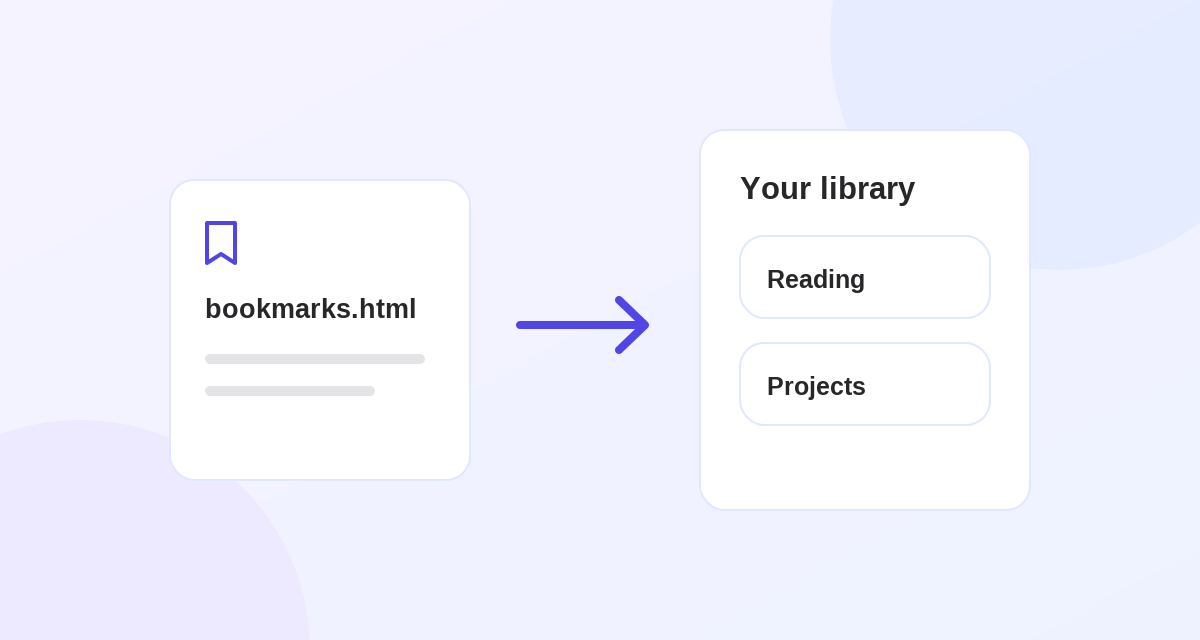
If you already have saved links in a browser, import your bookmarks from an HTML export. Importing brings in the links and folders. Reading the text from those pages is a separate step, so a large imported library will not necessarily become searchable all at once.
2. Check that the page content is ready
On the web, the bookmark's content status tells you whether its text is ready for Deep search. Content indexed means Stash has readable text for that bookmark. If you see Waiting to read page, use Read now when offered, then wait for the status to update. Older saved pages are processed gradually.
Reading can fail if the original page requires a login, blocks automated access or does not provide readable article text. Saving the URL still works; its title, URL, tags and your notes remain available to regular search.
3. Search for a word from the article
Turn on Deep search beside the search field and enter a distinctive word from the page. In the example, that word is Figma. You can also search for a tool, a person or a technical term you remember. Start with one or two words actually used in the article.
Regular search checks bookmark details: titles, URLs, tags and notes. Deep search adds the readable text Stash has collected from supported public pages. It is text search; it does not invent an answer or guarantee a match for an idea expressed with completely different words.
Check the selected collection and tags if a result seems missing. The search still works within the library and filters you have selected. You can use Deep search in your personal library or a team collection you have access to, on the web or in the Android app.
4. Read the matching passage, then open the source
A result found inside a page shows a relevant excerpt. Use that passage to decide whether it is the article you had in mind, then open its link to read the original website. This saves you from opening every vaguely familiar title in your collection.
For a project, add a note about the passage you need and keep the source in a relevant collection. The research guide shows how to keep sources and questions together. For a personal queue, follow the read-later workflow.
Why is a saved page missing from Deep search?
- Its text is not ready yet. Check the content status and use Read now when available.
- A filter excludes it. Return to the appropriate library or collection and clear unrelated tags.
- The text could not be read. Login-only pages, PDFs and article text rendered only by JavaScript are not supported. A public page may also block the reader.
- The page changed. If an update is queued and Refresh search content is offered, use it to read the page again. Previously indexed text can remain searchable while a refresh is pending or has failed.
- The search words differ from the page. Try a shorter term from the original text, or search the bookmark's title and notes instead.
What does Deep search save, and who can search it?
Stash stores readable text from supported public pages to help you find saved links. It does not keep a complete visual archive or provide offline article reading. An excerpt is not a live copy of the source: if the original changes or disappears, the saved text may be older.
Your personal bookmark library requires your account. Deep search does not publish your saved links or expose your library to other Stash users. Members of a shared team collection can search the links they have access to.
Create a free account, save one public article and try a distinctive word from its text. For the full feature overview, see the Stash bookmark manager.
Put it into practice.
Unlimited bookmarks, collections, tags, notes and Deep search. All on Free.