Across devices · 4 min read
Save a link on your phone. Find it on your computer.
A simple way to keep a useful find from getting lost between a phone, a laptop and another browser.
By Miodrag MilosevicUpdated
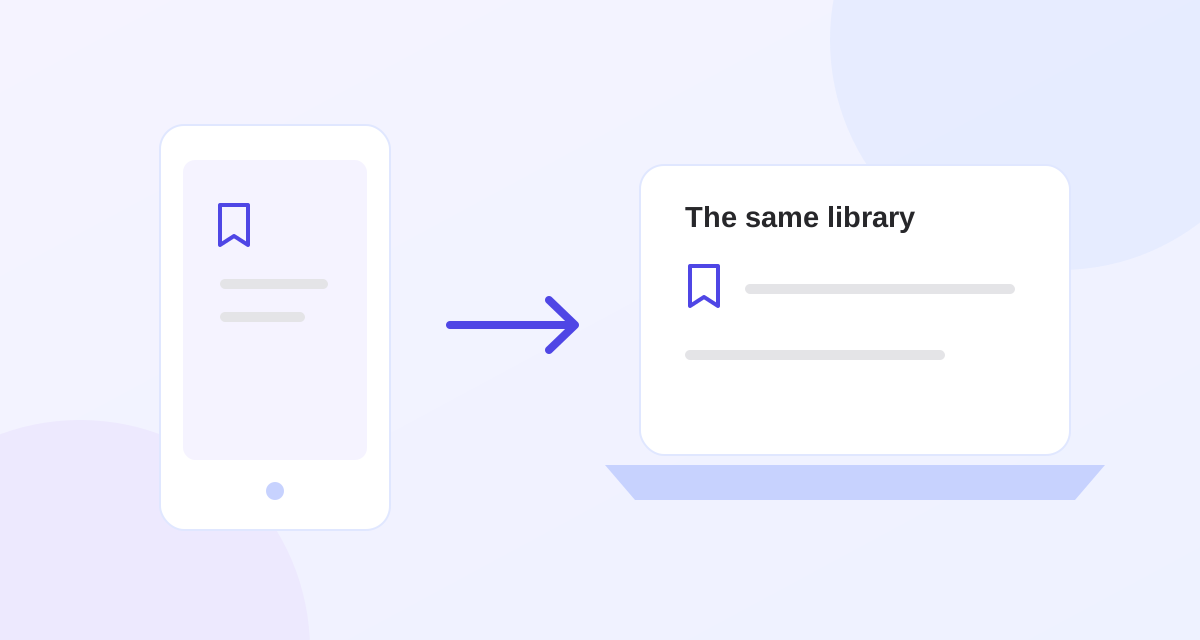
You find a useful link on your phone, but the work happens later on your laptop. Sending it to yourself can work once; finding it among chat messages and open tabs becomes another task. In Stash, save it to your account with a collection and a little context, then open that account on the other device.
Start with the web app on both devices
The web app works in a phone browser and a desktop browser. You do not need a browser extension or the Android app to use this workflow.
- On your phone, open Stash in the browser and sign in.
- Copy a page or post URL from the app where you found it.
- Return to Stash, paste the URL into the save field, choose a collection and press Save link.
- Wait for the successful save. Open the saved link's Edit controls to add a useful tag or note.
- On your computer, sign in to Stash with the same account and open that collection.
For a first test, save one link and use a distinctive note such as “compare this before the Friday meeting.” On the computer, search for Friday. Search covers titles, URLs, tags and notes, so you do not have to remember the page's exact title.
Choose a collection that helps your future self
A folder named Phone links tells you where a bookmark came from, but not what to do with it. A collection such as Read later, Kitchen renovation or Course references gives you a reason to return. Use a tag such as compare or tutorial when it is useful across several collections.
For example, save a product review from your phone in Kitchen renovation, add the tag compare and note the measurement you need to check. Later, open the collection on your computer alongside the other references. For articles and videos you plan to work through, follow the reading-list guide.
Use the same account, even in different browsers
Your Stash library belongs to your account, rather than to a particular browser installation. Check the email shown in Stash on both devices. If one browser is using a second account, it will have a different library.
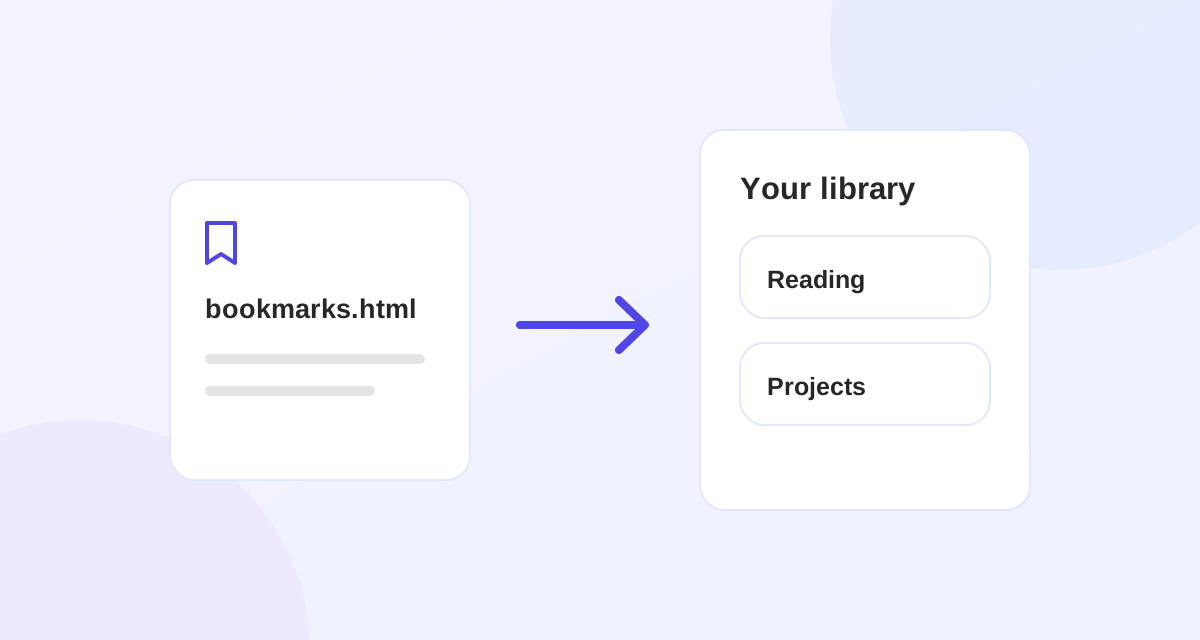
Saving a link in Stash does not also add it to Chrome, Safari or Firefox bookmarks. It does not continuously import those browsers' existing bookmarks either. To bring an old browser library into Stash, use an HTML bookmark export and check the preview before importing.
What changes with the Android app?
The Android app is being prepared for a public Google Play release. Test builds require access to their testing track and are not a general public download. You can use the phone-browser steps above now; check the Android section for the current availability.
If you have access to the native Android build, the share menu offers a shorter route:
- Open a page or post in another app and choose Share.
- Select Stash from the Android share sheet.
- Review the URL in Stash, choose a collection, add any tags or notes and save it.
The source app controls what it sends. If it sends media or text without a usable link, choose Copy link there and paste the address into Stash instead. Sharing to Stash opens a form to review and save; it does not silently import everything you share.
If the link does not appear on the other device
- Check the account email. Being signed into the same browser provider does not by itself confirm that both Stash sessions use the same account.
- Check the save result. A pasted URL is not saved until the save succeeds. Check any error before moving on.
- Clear the search and collection filter. Open All links to check whether the bookmark is simply outside the current view.
- Refresh the library. Reload the web page or use the mobile library's refresh control after checking your connection. There is no need to create another copy just to transfer the link.
This workflow needs a connection to save and retrieve your account data. A bookmark is not an offline copy of the original page or video. The source site must still be available, and private or paid content may require its own login.
Your devices and someone else's library are different cases
You do not need collection sharing to open your own saved links on another device. Saving and organizing are included on Free. Collection sharing is for giving another Stash user access to selected links: only the sender needs Pro. Recipients can view and import on Free.
If you want to send a reading list or project folder to another person, see how shared collections and independent imported copies work. For your own phone and computer, keep using the same account.
Put it into practice.
Collections, tags, notes and unlimited bookmarks. All on Free.